

Community Article
Community articles are authored by SitePoint Premium contributors. Content is screened before publication, and SitePoint reserves the right to moderate or remove articles that violate our guidelines. Views expressed are those of the authors and do not necessarily reflect those of SitePoint.
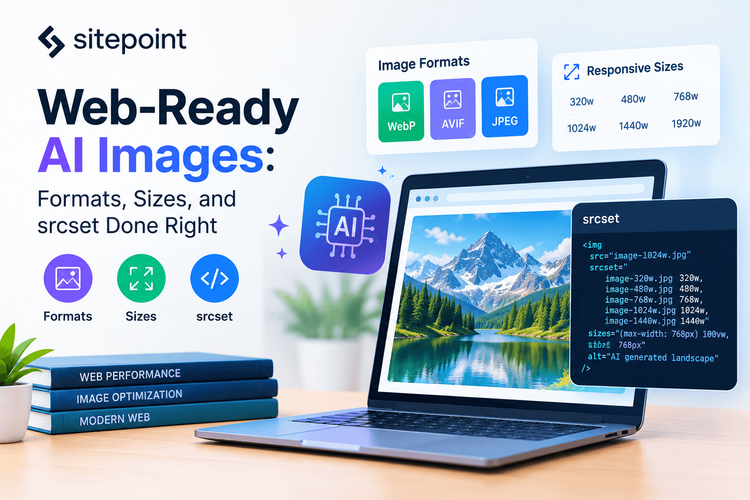
Web-Ready AI Images: Formats, Sizes, and srcset Done Right
ASAsjad SEOPublished inContent Marketing·Design & UX·
October 23, 2026
·Updated:October 24, 2026
The AI briefing for Developers
Stay up to date with AI tools, model releases, and developer workflows that matter.
Weekly. Free. One click to leave.
SitePoint Premium
Stay Relevant and Grow Your Career in Tech
- Premium Results
- Publish articles on SitePoint
- Daily curated jobs
- Learning Paths
- Discounts to dev tools
7 Day Free Trial. Cancel Anytime.
Generating Web-Ready Images With AI: Formats, Sizes, and srcset Done Right
AI image generation has become a normal part of many web projects. However, the image a model produces is rarely the image a browser should receive. A single large PNG straight from a generator can weigh several megabytes, ignore the visitor’s screen size, and slow down your Largest Contentful Paint (LCP) before the page has a chance to impress anyone.
The good news is that the fix is not complicated. If you treat the generated image as a high-quality master file and run it through a small, repeatable pipeline, you can ship images that look sharp on every device and load quickly on slow connections.
This tutorial walks through that pipeline from start to finish: generating at the right size and aspect ratio, choosing modern formats, creating responsive variants with Node.js, writing srcset and sizes correctly, and avoiding the performance mistakes that show up most often in audits.
Why AI Images Need a Web Pipeline
Image generators are built to produce visually impressive results, not optimized web assets. Their output is usually a single file at one resolution, often in PNG format, and sometimes with an aspect ratio that does not match your layout.
Sending that file directly to the browser creates three problems. First, mobile visitors download far more pixels than their screens can display. Second, PNG is a poor choice for photographic images because its lossless compression produces large files. Third, without width and height information, the browser cannot reserve space for the image, which causes layout shifts as the page loads.
A web pipeline solves all three. You generate one master image, export multiple sizes in modern formats, and let the browser choose the best version for each visitor.
Step 1: Generate at the Right Aspect Ratio and Resolution
Optimization starts before you export anything. The most efficient pipeline begins with an image that already fits your layout.
Plan Sizes From Your Layout
Look at where the image will appear and note its aspect ratio at each breakpoint. A full-width hero might use 16:9 on desktop, while a blog thumbnail might use 4:3 or 1:1. Then identify the largest size the image will ever display. For a full-width hero, that could be 1920 pixels wide on large screens, or more if you support high-density displays at wide viewports.
Your master image should be at least as large as that maximum rendered width. Upscaling a small image later almost always introduces blurriness or artifacts.
Prompt With Web Use in Mind
Modern image-generation models can follow detailed instructions, so describe the technical requirements in your prompt, not just the subject. Specify the aspect ratio, intended display size, visual style, and any areas that need to remain clear for HTML text. The exact controls available will depend on the tool you use, so check its official documentation before building a workflow around a particular feature.
A practical web-focused prompt might read :GPT Image 2.5 hero image of a modern home office at sunrise, soft natural light, calm blue and warm wood tones, clear empty space on the left third for headline text, no text or logos in the image.”
That last instruction matters. Avoid baking headlines or buttons into images. Text inside an image cannot be translated, resized for accessibility, or indexed reliably, and it often becomes unreadable at small sizes. Keep text in HTML and use the image for visuals only.
Step 2: Choose Modern Formats
Once you have a master file, decide which formats to serve. For most photographic and illustrative AI images, a combination of AVIF, WebP, and JPEG covers every modern browser while keeping file sizes small.
AVIF typically offers the strongest compression for photographic content and is supported by all major modern browsers, including Safari 16 and later. WebP is slightly less efficient but encodes faster and has near-universal support. JPEG remains a reliable fallback for older browsers and email clients.
Use PNG only when you specifically need lossless quality, such as for sharp-edged graphics or screenshots. Both AVIF and WebP support transparency, so you rarely need PNG for images with transparent backgrounds anymore.
Step 3: Generate Size Variants Automatically
Creating a dozen versions of every image by hand is tedious and error-prone. Instead, script the process. The Sharp documentation explains how to resize images and export them in different formats.
Then create a script that exports several widths in each format:
const widths = [480, 768, 1080, 1440, 1920];
{ ext: ‘avif’, format: ‘avif’, options: { quality: 50 } },
{ ext: ‘webp’, format: ‘webp’, options: { quality: 75 } },
{ ext: ‘jpg’, format: ‘jpeg’, options: { quality: 80, mozjpeg: true } },
for (const { ext, format, options } of formats) {
await sharp(‘src/hero-master.png’)
.resize({ width, withoutEnlargement: true })
.toFiledist/hero-${width}.${ext});
Save the file as an ES module, such as build-images.mjs, and run it with Node. The withoutEnlargement option prevents sharp from upscaling the master when a target width is larger than the original.
The quality values above are reasonable starting points, not universal rules. AVIF and WebP quality scales do not map directly to JPEG quality, so compare outputs visually at the sizes your users will actually see. Smooth gradients, which are common in AI-generated skies and backgrounds, are especially prone to banding at aggressive settings.
Step 4: Write srcset and sizes Correctly
The MDN responsive images guide explains how srcset and sizes work. The srcset attribute lists available image files and their intrinsic widths. The sizes attribute tells the browser how wide the image will be displayed in the layout. With both pieces of information, the browser can choose the smallest file that still looks sharp on the visitor’s screen, including high-density displays.
Here is an example for an image inside an article column that is 720 pixels wide on larger screens and nearly full width on smaller ones:
srcset=”dist/hero-480.jpg 480w,
sizes=”(min-width: 800px) 720px, 100vw”
alt=”A modern home office at sunrise with a wooden desk and soft natural light”
The most common mistake is omitting sizes or leaving it at 100vw for images that are not full width. When that happens, the browser assumes the image fills the entire viewport and downloads a much larger file than necessary. Always match sizes to your actual CSS layout.
Step 5: Serve Modern Formats With the picture Element
To offer AVIF and WebP with a JPEG fallback, wrap your image in a picture element. The browser checks eachdocumentation for the picture element for the full syntax
srcset=”dist/hero-768.avif 768w, dist/hero-1440.avif 1440w, dist/hero-1920.avif 1920w”
srcset=”dist/hero-768.webp 768w, dist/hero-1440.webp 1440w, dist/hero-1920.webp 1920w”
srcset=”dist/hero-768.jpg 768w, dist/hero-1440.jpg 1440w, dist/hero-1920.jpg 1920w”
sizes=”100vw” width=”1920″ height=”1080″
The img element is still required. It holds the fallback file, the dimensions, the alt text, and the loading attributes, while the
If you need a different crop on mobile, such as a square version of a wide hero, add media attributes to youra good reason to generate or crop a separate master image for small screens rather than relying on CSS to hide important parts of a wide composition
Step 6: Prevent Layout Shift and Prioritize Your LCP Image
Always include width and height attributes on your img element. Modern browsers use them to calculate the image’s aspect ratio and reserve the correct space before the file downloads, which helps prevent Cumulative Layout Shift. In CSS, set the image to width: 100% and height: auto so it scales responsively while keeping its proportions.
Use loading=”lazy” for images below the fold, but never on your hero or other LCP image. Lazy loading your most important image delays it unnecessarily. Instead, add fetchpriority=”high” to the LCP image so the browser downloads it early.
Step 7: Handle Alt Text, File Names, and Metadata
Write alt text that describes the image’s purpose in context. If an image is purely decorative, use an empty alt attribute so screen readers skip it. Generated images do not come with meaningful descriptions, so this step always requires human judgment.
Use descriptive file names, such as home-office-sunrise-1440.avif, instead of generic names like image-final-v3.png. Clear names make assets easier to manage and give search engines a small amount of extra context.
Be aware of metadata. Some AI image providers, including OpenAI, embed C2PA provenance data that identifies an image as AI-generated. sharp strips most metadata by default, which reduces file size but also removes that provenance information. If transparency matters to your project or your client, recent versions of sharp offer a keepMetadata() method, and you can also disclose AI-generated imagery in captions or credits.
What About AI Site Builders?
Many teams now launch landing pages and marketing sites with AI Site Builder instead of writing every component by hand. These platforms can speed up layout and content creation, but you should still verify how they handle images.
Before publishing, open your browser’s developer tools and inspect the generated markup. Check whether images include srcset and sizes attributes, whether modern formats are served, whether width and height are present, and whether the hero image is lazy-loaded by mistake. Some platforms handle all of this automatically. Others serve a single large file to every device.
Whatever platform you choose, upload high-quality master images and confirm that the final pages pass a performance audit. A site builder can save time on structure, but the responsibility for fast, accessible pages still belongs to you. For implementation details, consult the MDN guide to responsive images and the web.devguide to image performance.
Test and Verify Your Results
In Chrome DevTools, open the Network panel, filter by images, and resize the viewport or switch to device emulation. Reload the page and confirm that smaller files load on smaller screens. You can also select the image in the Elements panel and check its currentSrc property in the console to see which file the browser actually chose.
Then run Lighthouse or PageSpeed Insights. Look for warnings about properly sized images, modern image formats, and LCP.
Common Mistakes to Avoid
- Serving the generator’s original PNG directly. Always treat it as a master file, not a deliverable.
- Omitting the sizes attribute. Without it, browsers often download larger files than necessary.
- Lazy loading the hero image. This delays your Largest Contentful Paint.
- Forgetting width and height. Missing dimensions cause layout shifts.
- Baking text into images. Keep headlines and buttons in HTML for accessibility and responsiveness.
- Compressing gradients too aggressively. Smooth AI backgrounds can band at low quality settings.
Frequently Asked Questions
Is AVIF always better than WebP?
Not always. AVIF often produces smaller files for photographic content, but it encodes more slowly. Serving both with a JPEG fallback is a safe default.
How many image widths should I generate?
Four to six widths usually cover most layouts. Choose them based on your breakpoints and the largest rendered size of each image.
Review the current terms of service for the model and the platform you use. Licensing terms can differ between providers and plans.
Final Thoughts
AI image generation removes much of the cost and time of creating custom visuals, but it does not remove the need for good web engineering. Generate a high-quality master at the right aspect ratio, export responsive variants in modern formats, write accurate srcset and sizes values, protect your LCP and layout stability, and test everything before you ship.
Once the pipeline is scripted, every new image takes seconds to optimize. That combination gives you the creative speed of AI and the performance your visitors expect.
